What Minecraft Teaches Us About Composable Terraform Modules
January 18, 2026
Azure AD B2C to Entra External ID (EEID) Migration Kit — Overview

The GitHub repo. is here.
The supporting Learn doc. for JIT migration is here.
Note: This is a large repo. and there is a ton of stuff to absorb!
I strongly recommend looking through the different parts and getting a feel for the overall flow and where the scripts and code sit.
Read the guides, the main README and the README in the “scripts” directory.
Note. Although the repo. is aimed at migrating from B2C to EEID, the same flow can be used for any legacy system.
The overall structure is:
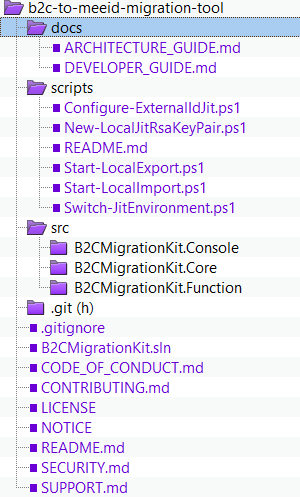
In the “Docs” section, there are an architecture and a development guide.
In the “Scripts” section, there are three main PowerShell scripts:
- Configure-ExternalIdJit
- Start-LocalExport
- Start-LocalImport
The “Configure” script configures the Azure function and keys that handle the password migration.
This basically automates the steps in the JIT migration Learn post above.
The “Export” script exports the B2C users to blob storage in batches.
The “Import” script imports users from blob storage and creates them in EEID.
It also creates a migration-required flag for each user.
"extension_1b...8c_RequiresMigration": true,
The user is created in EEID with a dummy password.
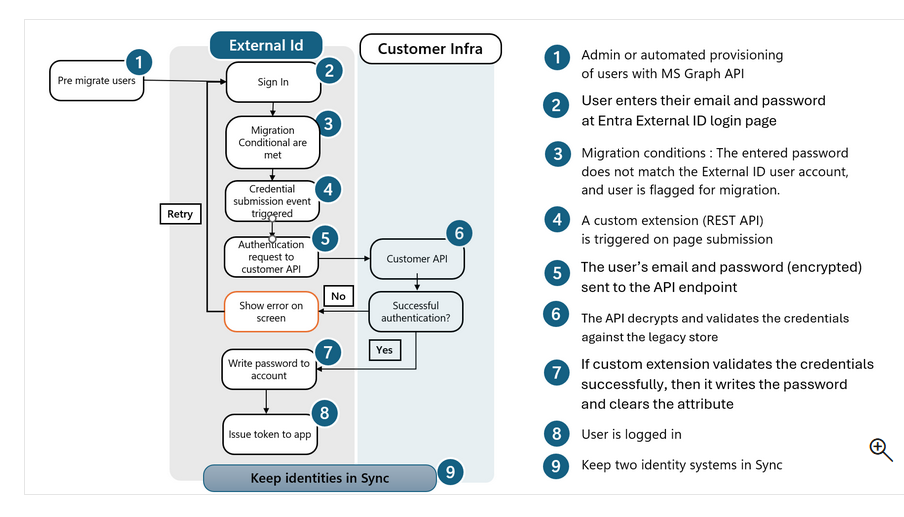
When the user logs into EEID for the first time and uses their B2C password, the password won’t match.
If this is the case and the migration-required flag is “true”, then a custom extension is triggered that calls the Azure function with an encrypted email and password
The Azure function decrypts this and sends the credentials to B2C via ROPC.
If B2C successfully validates the password, the function updates EEID with the new password and clears the migration-required flag.
If the B2C password is weak, the user may be asked to choose a stronger password.
The overall flow as per the docs. is:
There are two implementation options:
- a local “test” version using ngrok for the function, local keys for the encryption/decryption and Azurite for the Azure blob storage
- a “production” version using Azure functions for the function, KeyVault for the encryption/decryption and Azure blob storage
Note: The scripts are currently not production-ready.
In the “src” section, there are three applications:
- B2CMigrationKit.Console
- B2CMigrationKit.Function
- B2CMigrationKit.Core
The “Console” tool is a CLI tool for export/import operations.
The “Function” application is the Azure function for JIT password migration.
The “Core” tool is for shared business logic and services.
As per the repo. the following is available:
- Bulk user export from Azure AD B2C with automatic pagination
- Bulk user import to EEID with extension attributes
- JIT password migration via a custom authentication extension
- UPN domain transformation preserving local-part identifiers as a workaround to enable sign-in alias (username) functionality
- Attribute mapping with flexible field transformation
- Export filtering by display name pattern and user count limits
- Built-in retry logic with exponential backoff
- Comprehensive telemetry with Application Insights integration
- Local development mode using Azurite emulator (no Azure resources)
- Multi-Instance scaling for high-volume migrations
Console logging can also be used.
As per the docs. the prerequisites are:
Export & Import
.NET 8.0 SDK — Build and run the console application
dotnet --version # Should be 8.0+
Azurite — Azure Storage emulator for local development
npm install -g azurite
JIT Migration Testing
PowerShell 7.0+ — Modern PowerShell features
$PSVersionTable.PSVersion # Should be 7.0+
ngrok — Expose local function to the internet
choco install ngrok
# Or download from https://ngrok.com/download
Azure Function Core Tools — Run functions locally
npm install -g azure-functions-core-tools@4
Azure CLI — for authentication
Installation instructions here.
az login
Note: The current function code does not implement the B2C ROPC call.
// TODO: Call your legacy authentication provider here
//
// Then based on the response from your legacy provider:
// - If authentication successful AND password strong: return MigratePassword
// - If authentication successful BUT password weak: return UpdatePassword
// - If authentication failed: return Retry
// - If system error: return Block

// PLACEHOLDER: Always return Retry for now
log.LogInformation("Using placeholder implementation - returning Retry action");

return CreateResponse(ResponseActionType.Retry, nonce, "Authentication Pending",
    "Please implement legacy authentication integration.");
Ideally, you would return ResponseActionType.MigratePassword.
EEID is much stricter about password policies, so the user may be asked to update their old B2C password.
I will be writing a series of posts that will do a deep dive into the above.

All good!
Azure AD B2C to Entra External ID (EEID)Migration Kit — Overview was originally published in The new control plane on Medium, where people are continuing the conversation by highlighting and responding to this story.